See your story.Find its shape.
Turn a collection of scenes into an outline you can work with. Move cards through your acts, mark the turning points, and review the story one scene at a time.
Try Honeycomb 30-Day Trial No credit card required.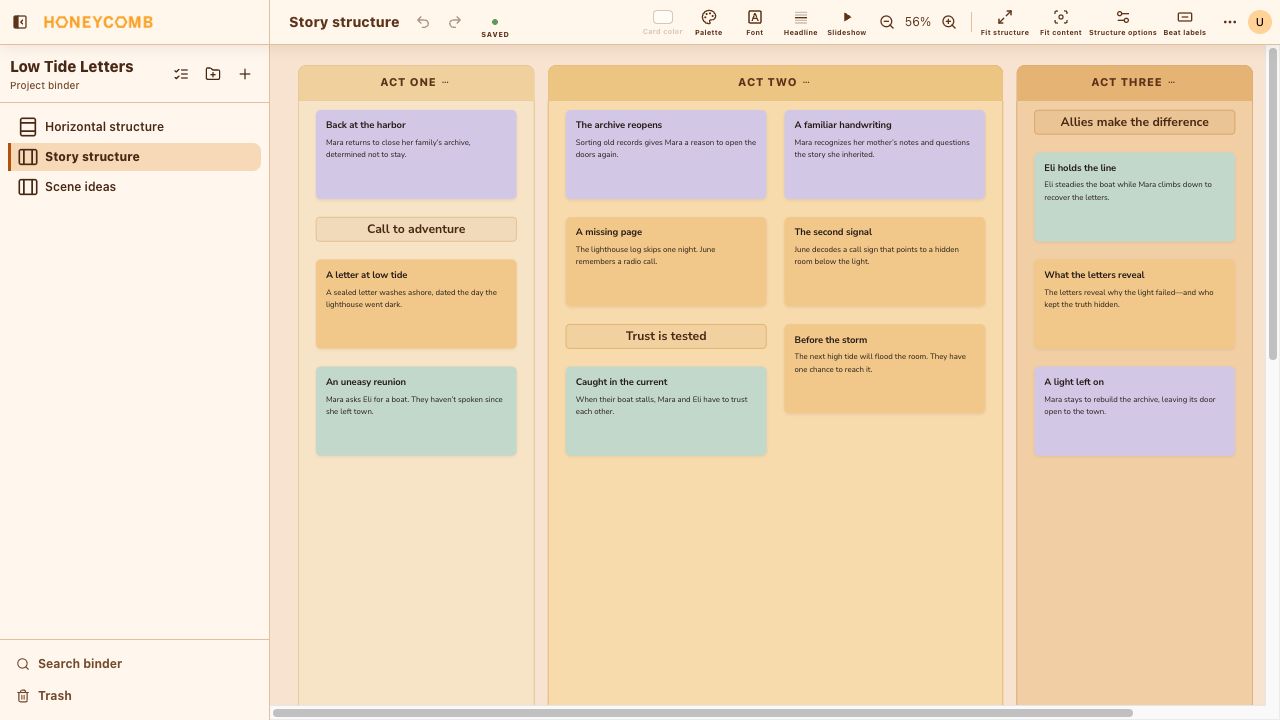
An outline you can rearrange.
Start with a vertical or horizontal three-act template. Write a short summary on each scene card, then drag it into the place that makes sense for your story.
- 01Adjust acts and their columns or rows as the outline grows.
- 02Insert a scene between other cards without rebuilding the board.
- 03Focus on one act, or switch cards to headlines for a simpler overview.
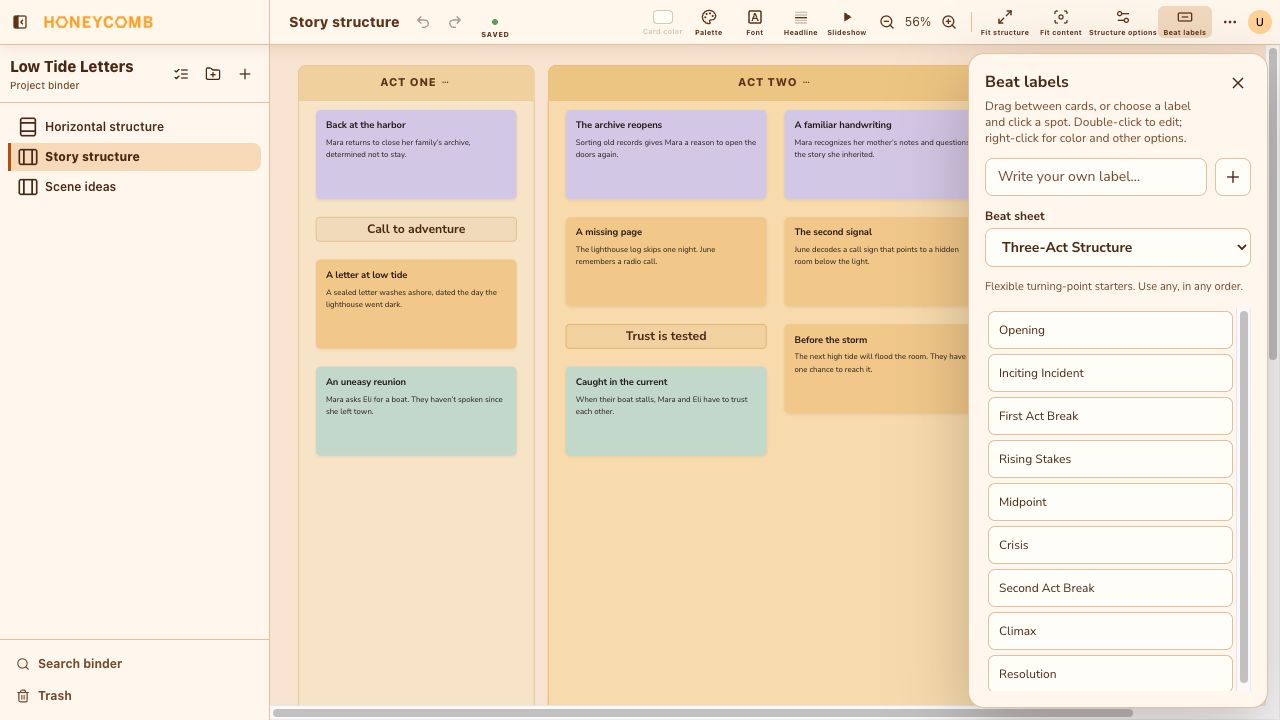
Mark what matters between scenes.
Beat labels sit between your scene cards. Use them to mark a catalyst, a midpoint, a revelation, or a turning point in your own words.
- Choose labels from Save the Cat, Three-Act Structure, or Hero’s Journey.
- Write custom labels and change their colors.
- Move a label within a column or row as the story changes.
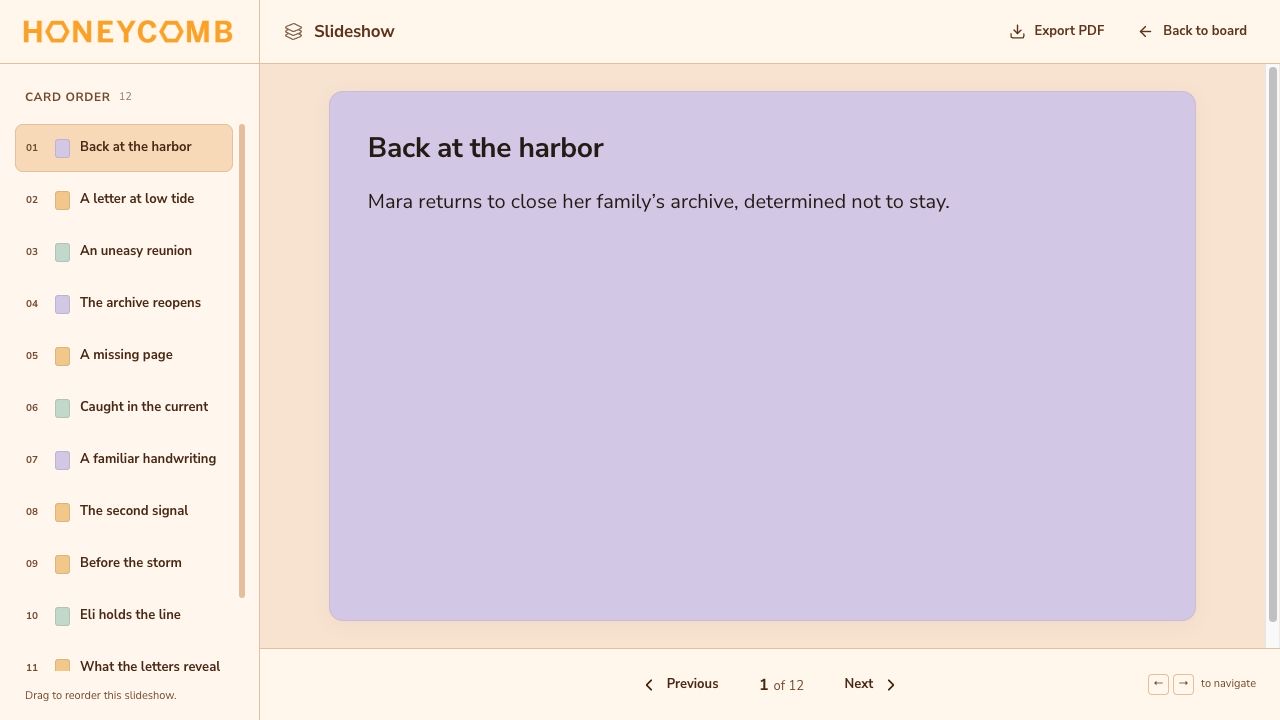
Play through the scenes of your story.
Open Slideshow from the editor’s header to give each scene your full attention. Read through the summaries in sequence and notice where the story jumps, repeats itself, or needs another beat.
- Move through cards with Previous and Next or the arrow keys.
- Jump to a scene or rearrange the slideshow without changing your board.
- Export a PDF with one card per page or a four-card storyboard.
- Choose full descriptions or headlines, card colors or printer-friendly white, and an optional cover.
A few things
you might be wondering.
Can I use Honeycomb to plan a novel or a screenplay?
Yes. Scene cards and story structures can help you outline either. Honeycomb is a planning workspace; it is not a screenplay-formatting editor.
Do I have to follow the suggested beats?
No. Preset beat labels are optional. Use your own labels, change the structure, or start with a Freeform board instead.
Can I export my slideshow?
Yes. Download a PDF in the current slideshow order, with one card per page or a four-card storyboard. Images are included, and long descriptions continue onto additional pages. Slideshow is not a video export.
Make room for your next story.
Try Honeycomb free30 days. No credit card required.
View monthly and yearly plans